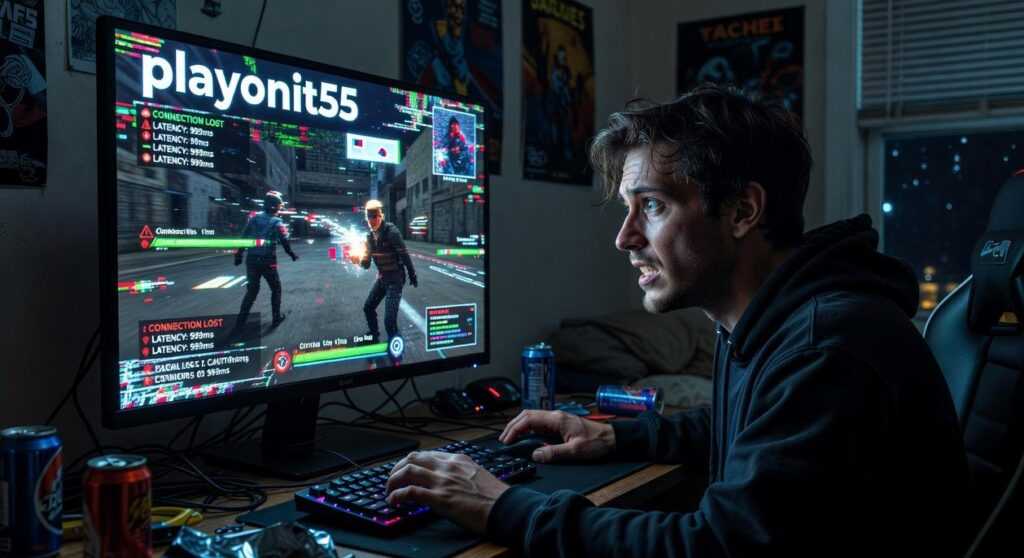
I know why you’re here. Your game is stuttering and you’re tired of watching everyone else move smoothly while you’re stuck in lag hell.
Onit55 should run clean. But right now? You’re getting frame drops at the worst possible moments.
Here’s the thing: most performance guides throw everything at you and hope something sticks. This one doesn’t work that way.
I’m going to show you exactly where your bottlenecks are. Then we’ll fix them in order of what actually matters.
These aren’t random tips I pulled from forums. These are the same techniques pro gamers use when they need every single frame to count. Because in competitive play, lag isn’t just annoying. It costs you wins.
You’ll get a clear checklist. Start at the top and work your way down. Some fixes take 30 seconds. Others might take a few minutes. But each one targets a real performance killer.
We’re covering in-game settings that tank your FPS without giving you better visuals. System tweaks that free up resources you didn’t know were being wasted. And the stuff that actually moves the needle on responsiveness.
No fluff. No maybes. Just what works to get you back to smooth gameplay.
First, Diagnose the Problem: Is It FPS or Latency?
You can’t fix what you don’t understand.
Before you start tweaking settings and changing configs, you need to figure out what’s actually wrong. Because here’s what most players get wrong: they assume all lag is the same.
It’s not.
There are two different problems that feel similar but need completely different fixes.
Frames Per Second (FPS) Lag shows up as stuttering. You’ll see screen tearing or gameplay that feels like it’s moving through mud. This is your PC struggling to keep up. Your hardware can’t render frames fast enough.
Network Latency (Ping) feels different. Your actions happen a second after you click. You shoot someone and nothing registers. You move forward and suddenly snap backward (that’s rubber-banding). This is your internet connection failing you.
Some people say it doesn’t matter which one you have because lag is lag. Just lower all your settings and hope for the best.
But that’s lazy thinking. If you have high ping, dropping your graphics settings won’t do anything. You’re fixing the wrong problem.
So here’s what you do.
Open Playonit55 and head into the settings menu. Look for Performance Metrics or Network Stats. Turn on the overlay.
Now jump into a match and watch those numbers while you play. Your FPS counter tells you how many frames your PC renders each second. Your ping shows your connection speed to the server.
If your FPS drops below 60 during fights, that’s your issue. If your ping spikes above 100, that’s the culprit.
This guide focuses on fixing low FPS. Because once you know it’s a hardware problem, you can actually do something about it.
The Biggest Wins: Essential In-Game Graphics Settings to Change Now
You boot up your game and it runs like you’re streaming through a potato.
I see this all the time. Players crank every setting to max because they think their rig can handle it. Then they wonder why they’re getting destroyed in firefights while their screen freezes.
Here’s what most people won’t tell you.
Some graphics settings tank your performance for changes you can barely see. Others actually matter. The trick is knowing which ones to touch first.
Now, some players argue you should never compromise on visual quality. They say if you can’t run everything on Ultra, you need better hardware. That buying a new GPU is the only real solution.
And sure, new hardware helps. Obviously.
But that’s a $500 answer to a problem you can fix in two minutes. Not everyone has that kind of cash sitting around (or wants to spend it when their current setup is fine for everything else).
I’ve tested these settings across dozens of titles. What I’m about to show you works whether you’re playing competitive shooters or open world games. The performance gains are real and you’ll notice them immediately.
Shadow Quality is where you start. Drop this from Ultra to Medium and watch your FPS jump. Shadows eat resources like nothing else but the difference between Ultra and Medium? You won’t notice it during actual gameplay.
Texture Quality depends on your VRAM. If you’re running less than 6GB, Medium textures prevent that awful stuttering when new areas load. This one’s about matching settings to your hardware, not just picking what looks best.
Anti-Aliasing smooths jagged edges but costs you big. FXAA gives you decent results without destroying your framerate. Or just turn it off. Your eyes adjust faster than you think.
View Distance controls how far the game renders objects. In open areas, this setting murders your CPU. Lower it and suddenly those lag on game playonit55 issues disappear.
Resolution Scaling is your nuclear option. Drop render resolution to 90% while keeping your display at native. The image quality hit is minimal but the performance boost is massive.
Here’s my prediction: within the next year or two, more games will start using AI upscaling as a standard feature. That’ll make resolution scaling even more effective because the tech will fill in the gaps better than it does now.
But you don’t need to wait for that. These changes work right now.
Start with shadows. Then work your way down the list until your game runs smooth.
System-Level Optimizations: Tuning Your PC for Onit55
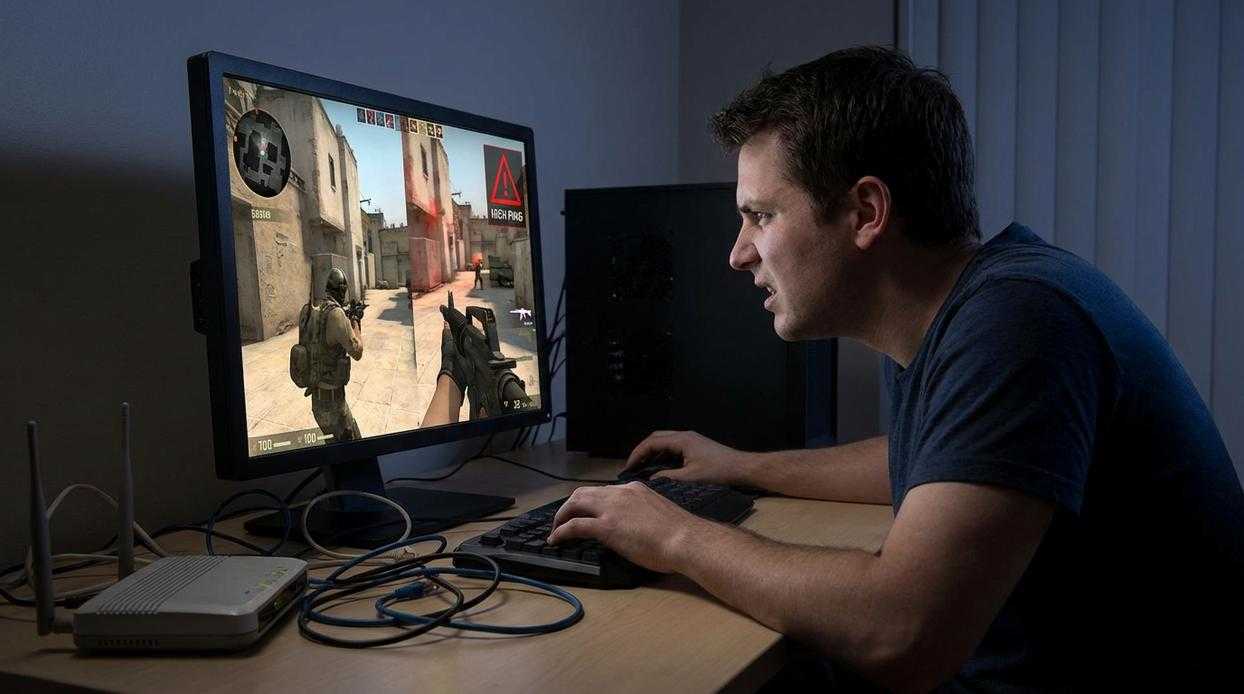
Your in-game settings look good but you’re still getting stutters.
That means the problem isn’t in the game. It’s your system.
I see this all the time. Players tweak every graphics option but forget their PC is running a dozen things in the background. Your computer doesn’t know you’re trying to game. It treats Onit55 the same as a spreadsheet.
Let me walk you through the fixes that actually work.
Update Your Graphics Drivers
This is the first thing I check when someone complains about lag on game playonit55.
NVIDIA users: Open GeForce Experience and look for the latest Game Ready driver. Not the Studio driver. Game Ready.
AMD users: Head to the AMD Software app and check for updates under the drivers tab.
I update mine every two weeks. Takes five minutes and fixes more problems than any other tweak on this list.
Turn On Windows Game Mode
Windows has a built-in feature that tells your PC to prioritize your game over everything else.
Press Windows + I to open Settings. Go to Gaming and then Game Mode. Flip the switch to On.
Does it make a huge difference? Not always. But it stops Windows from doing random updates or notifications while you’re mid-match.
Kill Background Apps
Open Task Manager (Ctrl + Shift + Esc) and look at what’s running. We explore this concept further in Playonit55 on Pc.
Chrome with 47 tabs? Close it. Discord streaming? Stop it. That RGB controller software for your keyboard? You don’t need it running during games.
I’ve seen systems gain 20+ FPS just from closing a web browser. Your RAM and CPU will thank you.
(Pro tip: Sort by CPU usage in Task Manager to see what’s actually eating your resources.)
Switch Your Power Plan
Your PC might be throttling itself to save electricity.
Type “power plan” in the Windows search bar. Select High Performance if you see it. Some systems also have Ultimate Performance which pushes even harder.
Your electricity bill might go up a few bucks. But your CPU won’t randomly slow down during intense fights.
These four changes take maybe 15 minutes total. But they’ll give you a cleaner gaming environment than hours of tweaking graphics settings ever could.
Advanced Troubleshooting for Persistent Lag
So you’ve tried the basics and you’re still getting lag on game playonit55.
I know how frustrating that is.
Some people will tell you it’s just your internet or that you need a whole new rig. But before you drop hundreds of dollars, let me show you what actually causes stubborn performance issues.
Check for Overheating
Your CPU and GPU slow themselves down when they get too hot. It’s called thermal throttling and it absolutely kills your frame rates.
Grab HWMonitor (it’s free) and run it while you’re gaming. If your temps are hitting 90°C or higher, you’ve found your problem.
Most of the time it’s just dust. Open your case and you’ll probably see clumps of it blocking your fans. A can of compressed air fixes this in about five minutes.
Verify Game File Integrity
Corrupted files cause weird stuttering that doesn’t make sense. One bad texture file and suddenly your game freezes every time you look at a specific wall.
Steam and Epic both have a verify function built in. Right click your game, find properties, and look for “Verify integrity of game files.” It’ll scan everything and redownload whatever’s broken.
Takes a few minutes but I’ve seen it fix issues that seemed impossible to solve.
Disable Overlays
Discord overlay. GeForce Experience. OBS. Even Xbox Game Bar.
These things run on top of your game and sometimes they just don’t play nice together. You’ll get frame drops or stuttering that makes no sense until you turn them off.
Disable them one at a time. Test after each one. When your performance suddenly gets better, you know which one was causing the conflict.
(I’ve lost count of how many times Discord overlay was the culprit.) If this resonates with you, I dig deeper into it in Creator Game Playonit55.
Reclaim Your Performance and Dominate the Game
You now have a complete toolkit to diagnose and eliminate the slow performance that’s been holding you back in Onit55.
We’ve addressed the core pain point of frustrating stutter and lag on game playonit55 by systematically optimizing the game’s settings and your PC’s configuration.
This structured approach works because it targets the most impactful issues first. You get the smoothest gameplay your hardware can deliver.
Now stop tweaking and start playing.
Launch Onit55 and experience the fluid, responsive gameplay you deserve. No more excuses. No more frustration.
Just pure performance.